scale(1.3637)'%3E%3Cg clip-path='url(%23cb)'%3E%3Crect x='0' y='0' width='1024' height='1024' fill='url(%23pg)'%3E%3C/rect%3E%3Cg clip-path='url(%23cf)'%3E%3Crect x='0' y='0' width='1024' height='1024' fill='url(%23fg)'%3E%3C/rect%3E%3C/g%3E%3C/g%3E%3C/g%3E%3C/svg%3E)
Writing and revision with live typesettingWriting with live typesetting
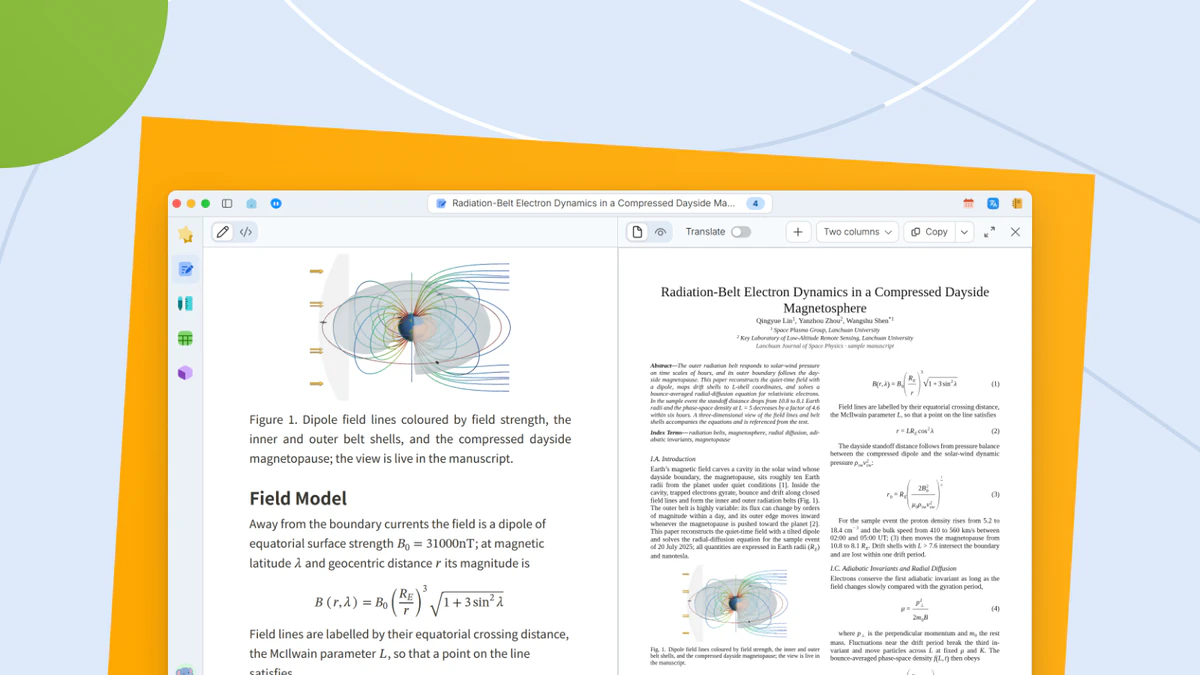
The paginated layout updates as you write in Docs, with tracked changes and comments that follow the text.Live pagination with tracked changes.

The Documents workspace keeps writing and layout together. Line breaks, pagination, footnotes and numbering are visible as you write.
When it helps
The draft is written in one window and the layout appears only after compiling in another. Change a sentence, wait a few seconds, and find the paragraph has pushed a figure off the next page. Collaborators’ comments sit in yet another file.
- Writing with the typeset page always in view
- A draft that advisors and co-authors will comment on and revise
- A different layout you want to try on the whole paper
In this guide
The layout view
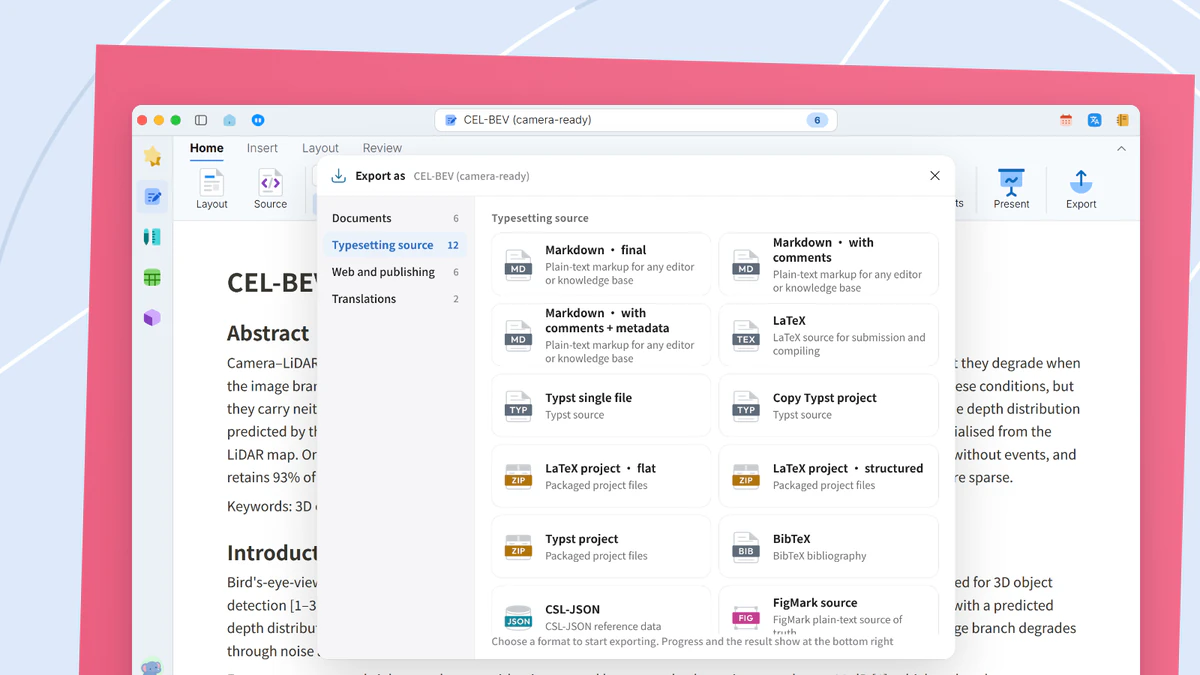
Click Layout in the View group on the Home tab to see paginated pages beside the editor. Source, next to it, shows the Markdown source. Source view is a Plus feature.

Layout templates
On the Layout tab, Templates lists the built-in layouts by group. All templates… opens the template window, where you check the details and click Use template.
Equation insertion and edits
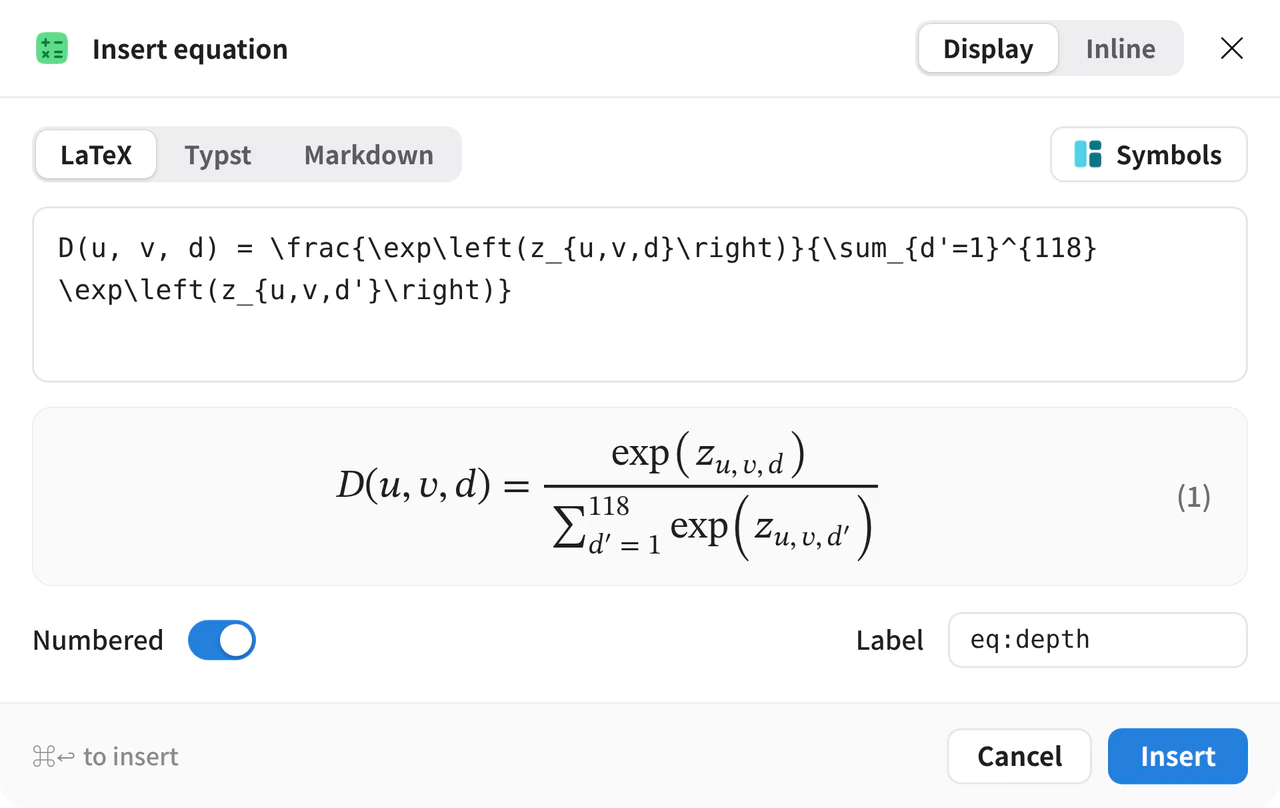
On the Insert tab, click Block Math and type the equation with a live preview. Choose Display or Inline, and add a label when Numbered is on. Double-click an equation to open its editor. Switch between Markdown and LaTeX. The preview shows it as it will be set in the document.
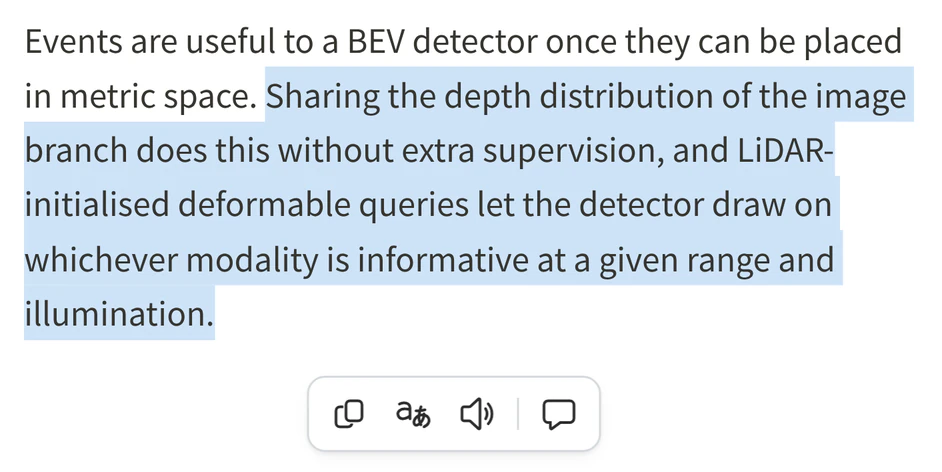
The selection toolbar
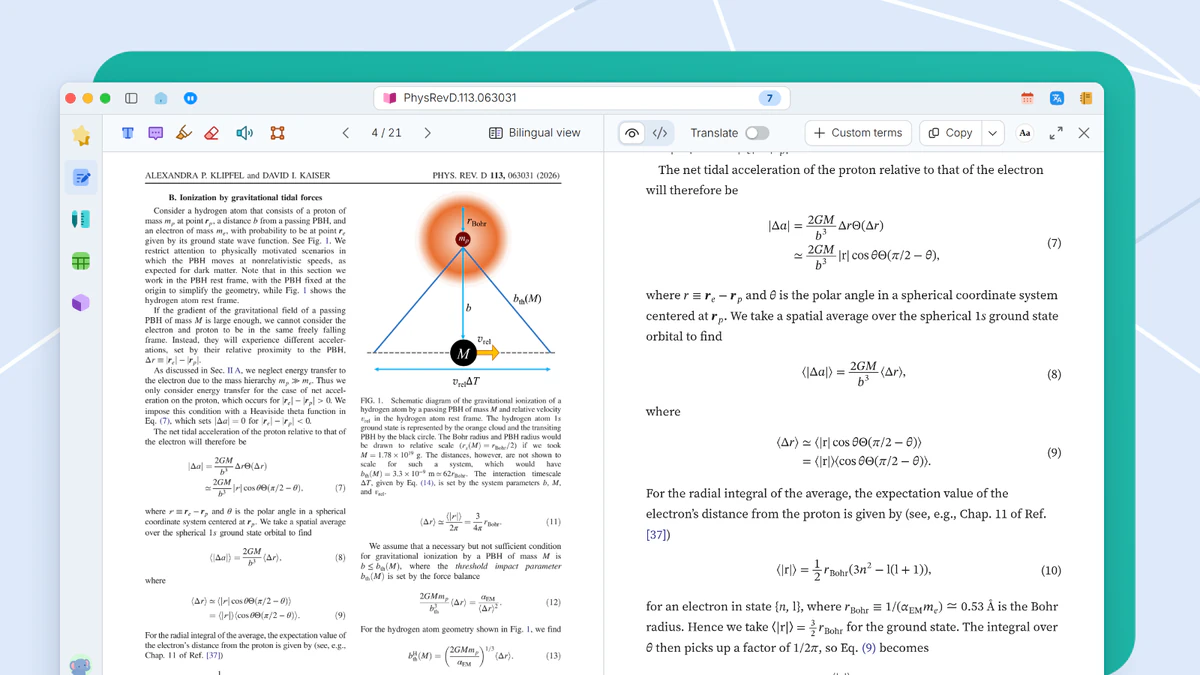
Select text and a toolbar appears under the editing area with four icons, Copy, Translate, Read aloud and Comment. Click Comment to write a note next to the selection.
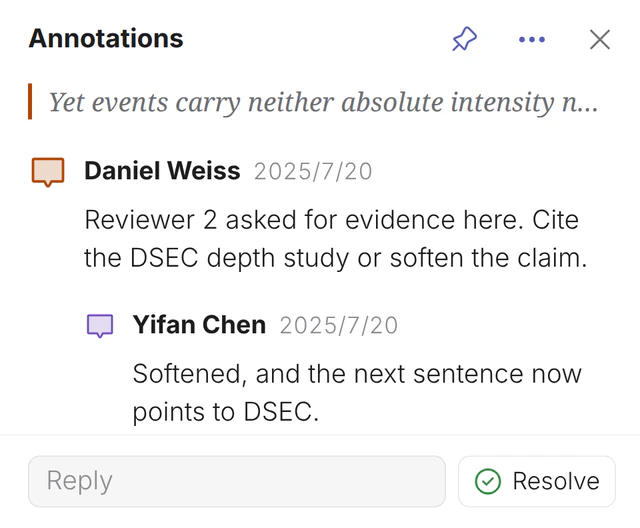
Comment replies and resolution
Click commented text to open its thread, reply, and mark it resolved. Comments on the Review tab lists every comment on the right.
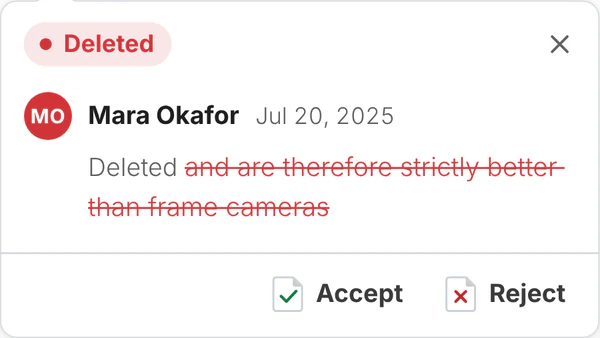
Tracked changes and review
Turn on Track Changes on the Review tab. Click a change to see the reviser, time and changed text, then click Accept or Reject.
What you get
Writing, layout and revision happen in one window, and every change shows on the page straight away.