scale(1.3637)'%3E%3Cg clip-path='url(%23cb)'%3E%3Crect x='0' y='0' width='1024' height='1024' fill='url(%23pg)'%3E%3C/rect%3E%3Cg clip-path='url(%23cf)'%3E%3Crect x='0' y='0' width='1024' height='1024' fill='url(%23fg)'%3E%3C/rect%3E%3C/g%3E%3C/g%3E%3C/g%3E%3C/svg%3E)
Comfortable reading of research papersComfortable reading
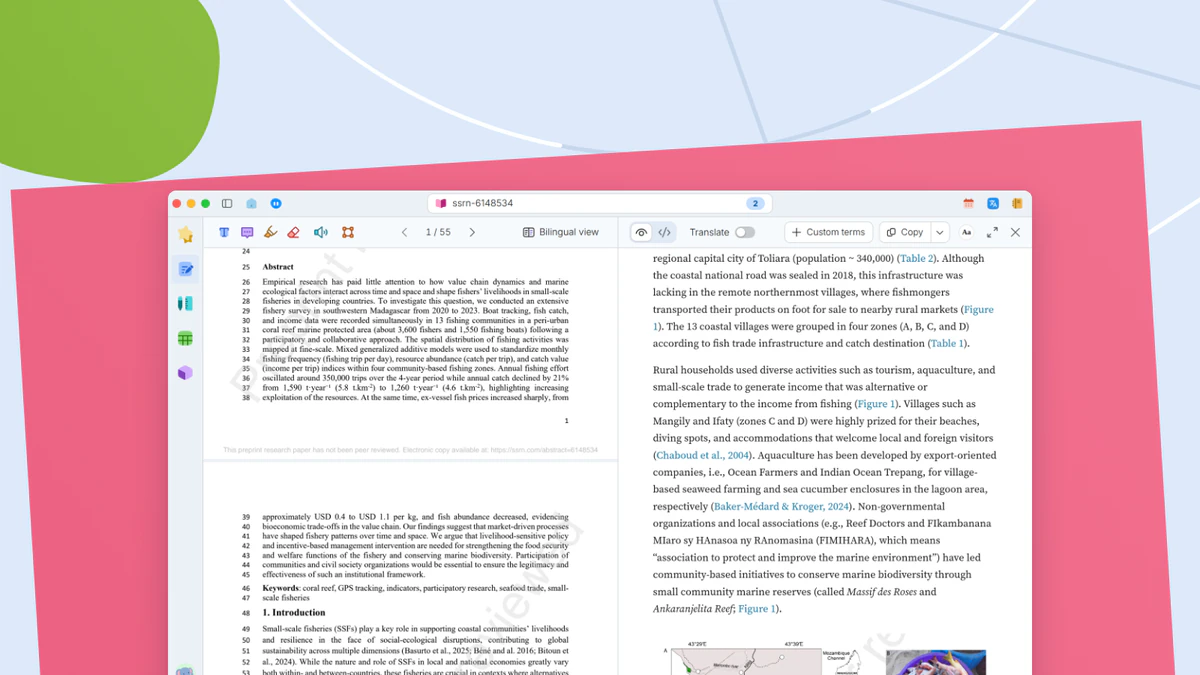
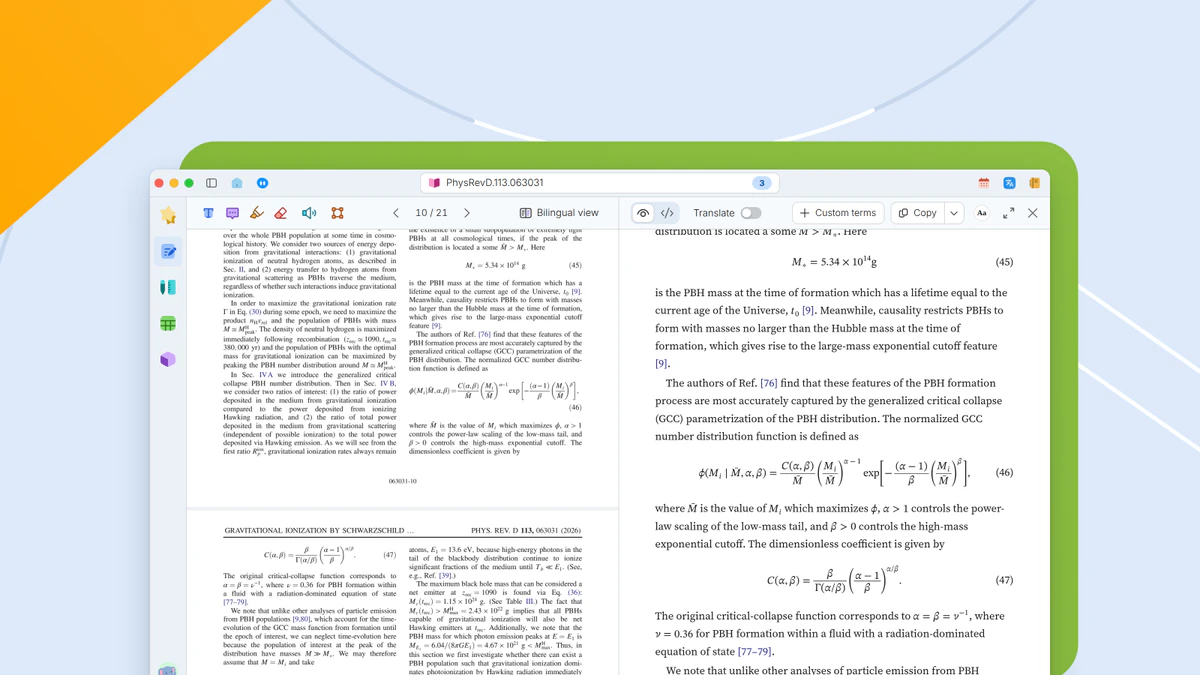
A two-column PDF reflowed into a single-column reading view, with citations, figures and equations checked in place.Two-column PDFs in one column, citations checked in place.

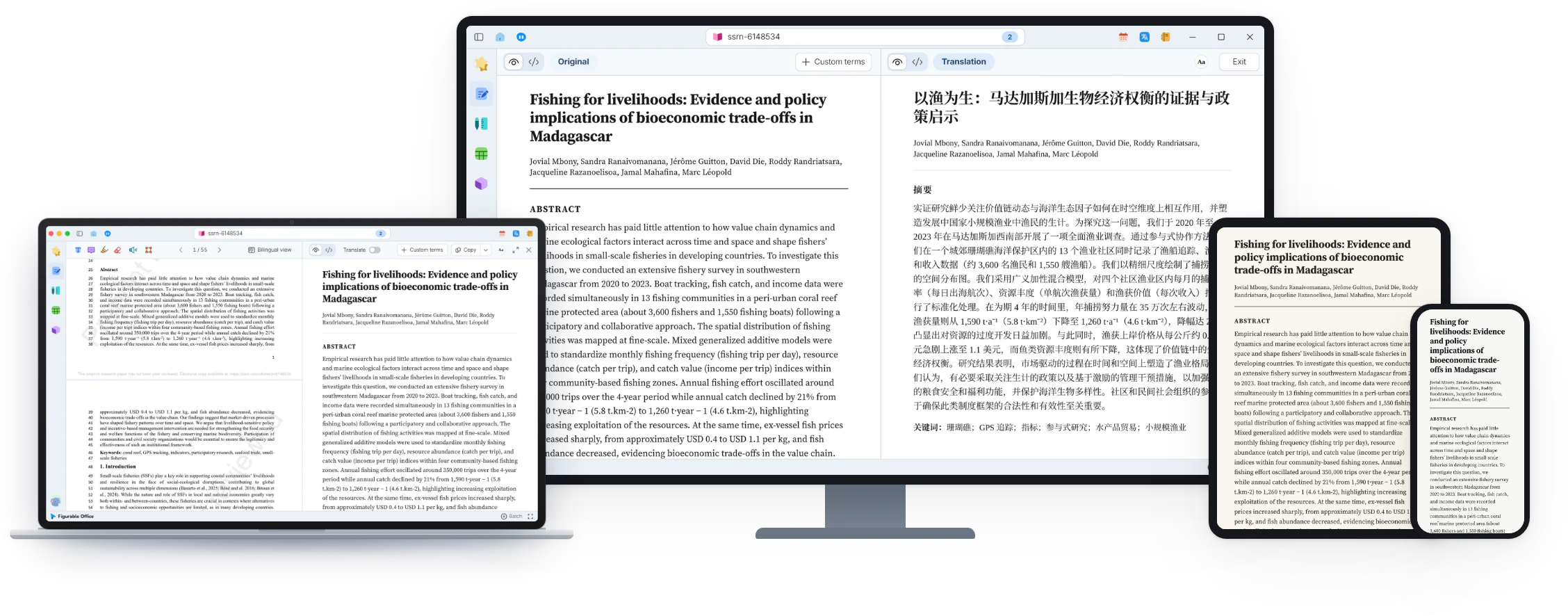
A two-column paper keeps you scrolling up, down and sideways. The reading view reflows the text into one continuous column. The original PDF is not changed, and you can go back to it at any time.
When it helps
A fifty-page two-column review is due at Wednesday’s group meeting. On a laptop, every page needs zooming and panning before it can be read. Each figure citation means a trip several pages away and another one back to find the line.
- Two-column papers on a laptop screen
- Citations that send you off to find a figure or reference
- Equations you want to reuse in your own draft
In this guide
The reading view
Drag a PDF into the window. On the Home tab, in the View group, click Read Mode. The original stays on the left and the reflowed column appears on the right.
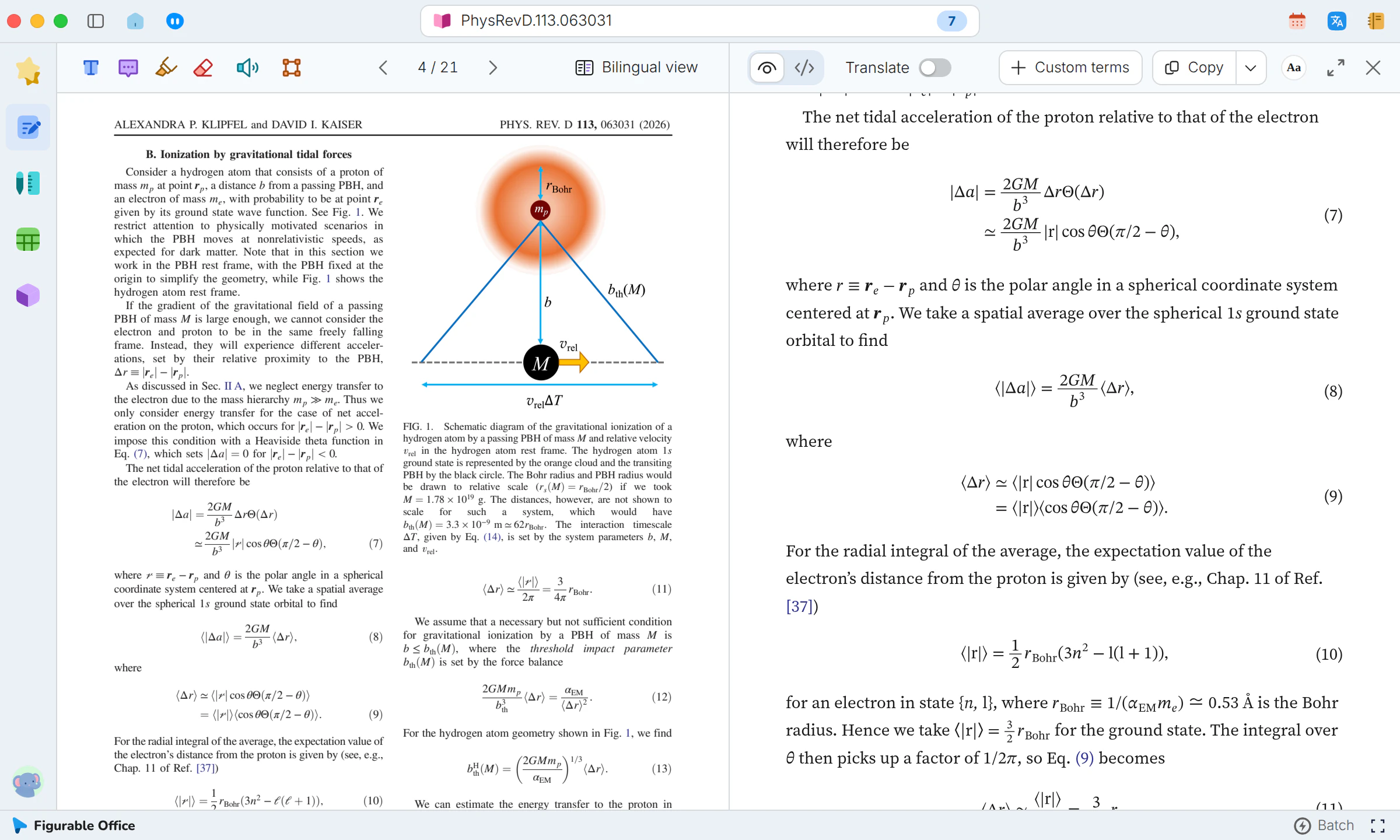
Paper color and text size
Click Eye comfort color on the reading bar. The popover has ten paper colors and a row of seven dots for the text size of both columns.
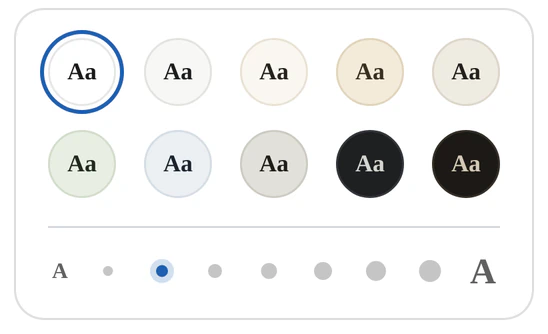
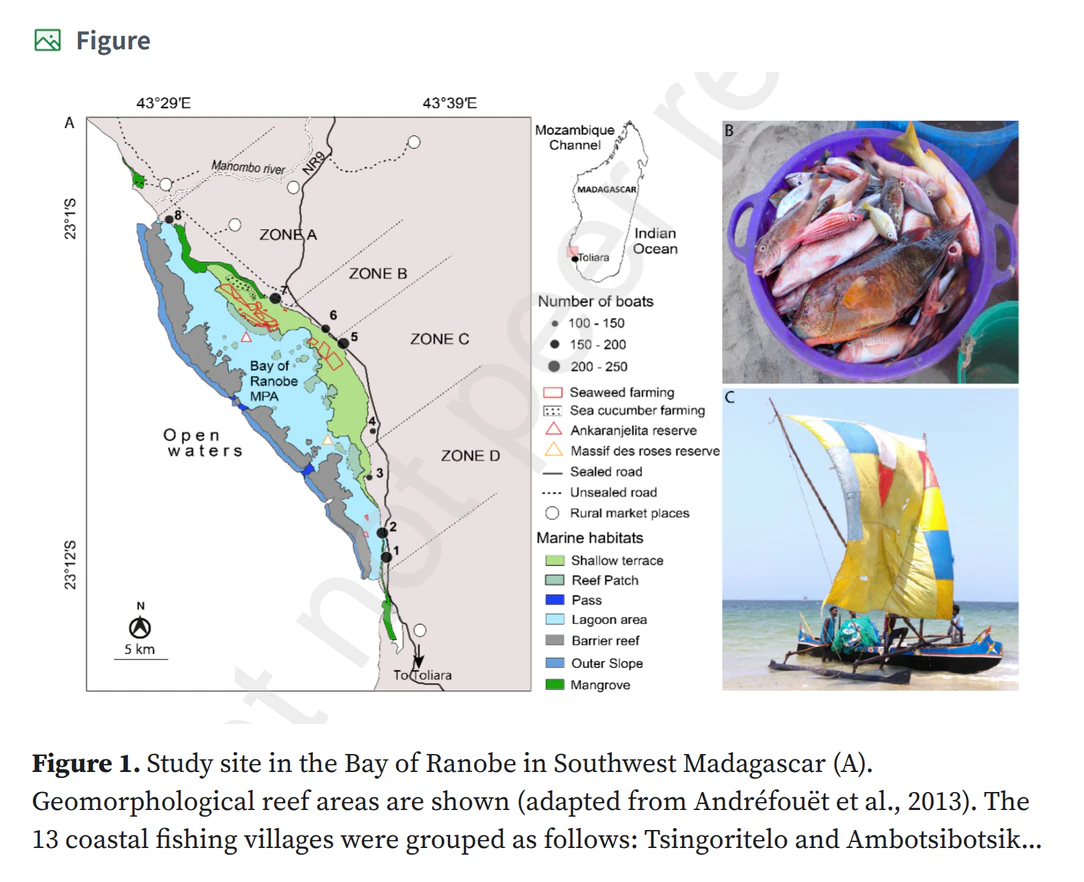
Figure and table previews
Rest the pointer on a figure or table number. The figure appears beside it with its caption and your place does not move.
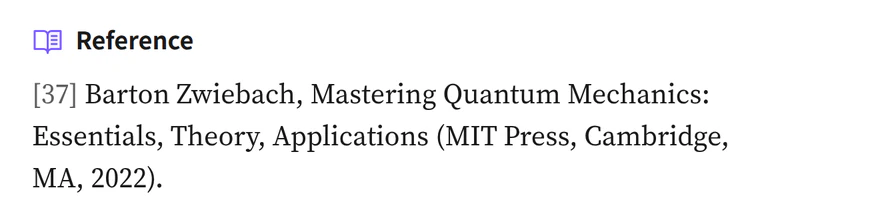
Reference previews
Rest the pointer on a citation number to see the full entry with authors, year, journal and DOI. There’s no need to jump to the end and back.
The equation window
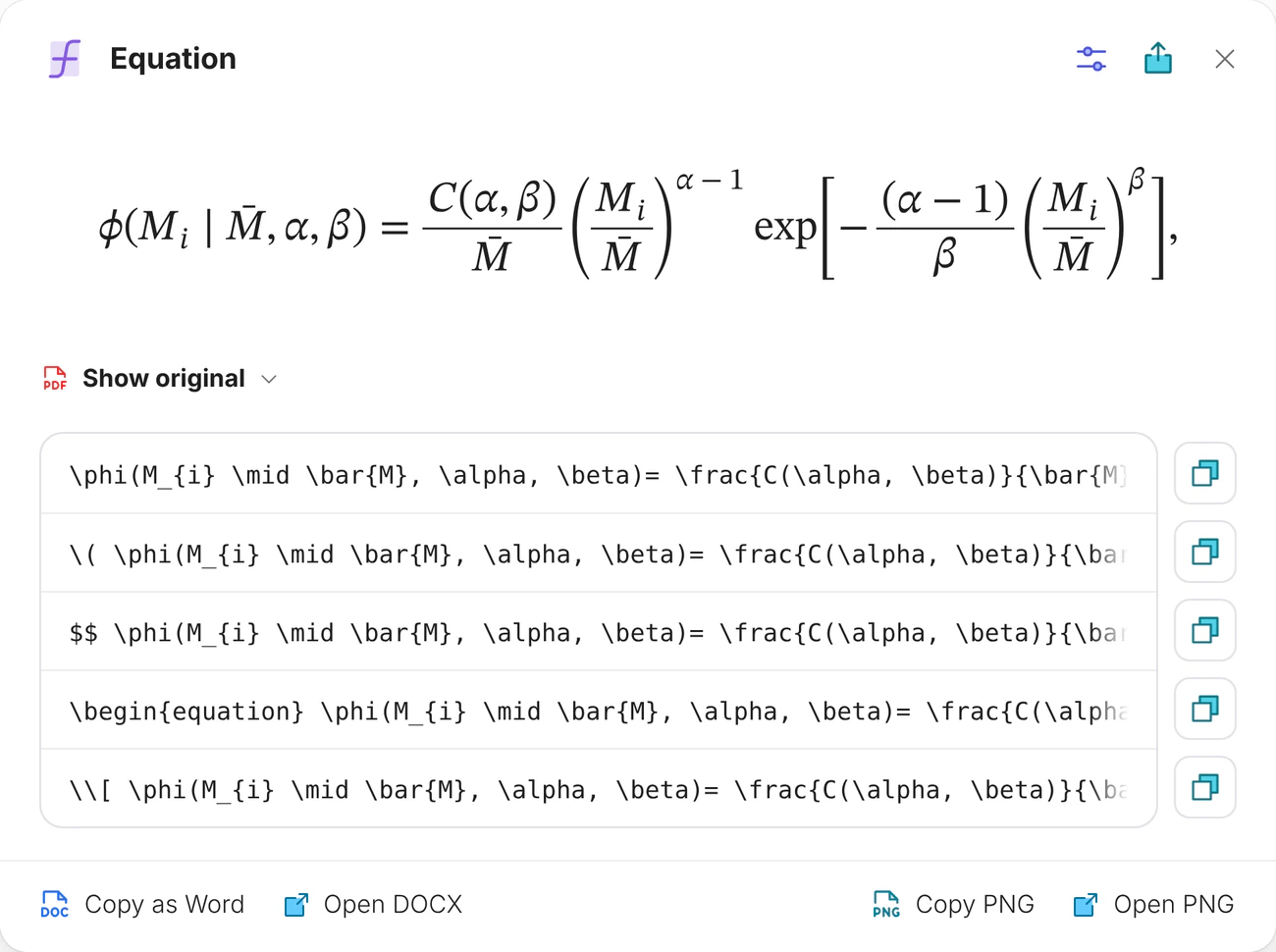
Click an equation. The window lists five LaTeX forms, raw, inline, display, numbered and custom delimiters. Click a row to copy it.
Equation export
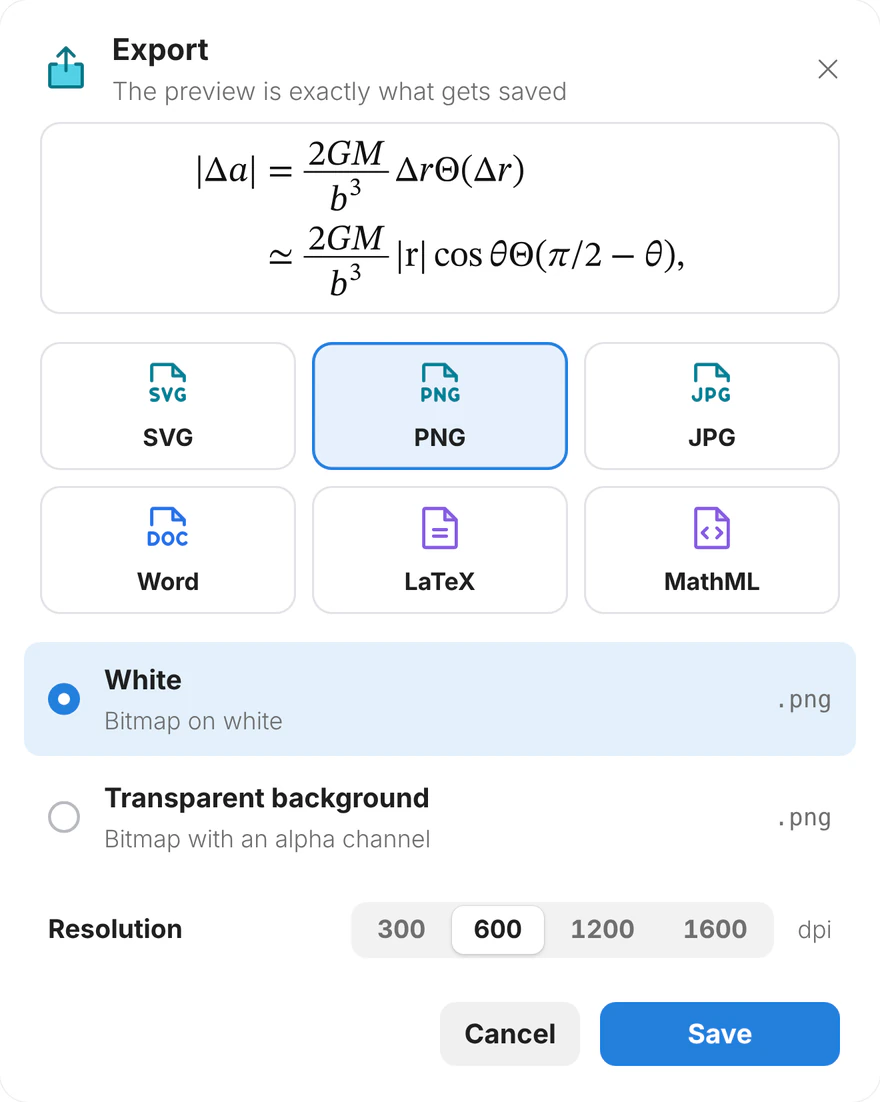
Copy as Word and Copy PNG sit at the bottom. The export button saves SVG, PNG, JPG, Word, LaTeX or MathML, with bitmaps up to 1600 dpi.
Selection, location and markup
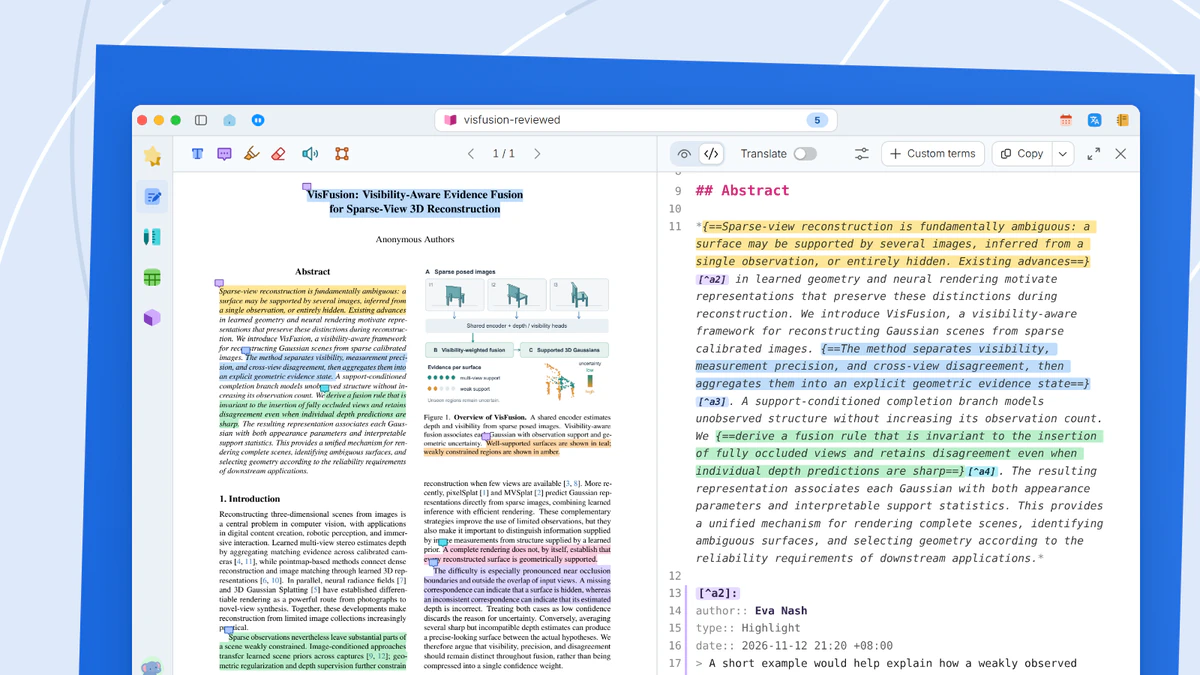
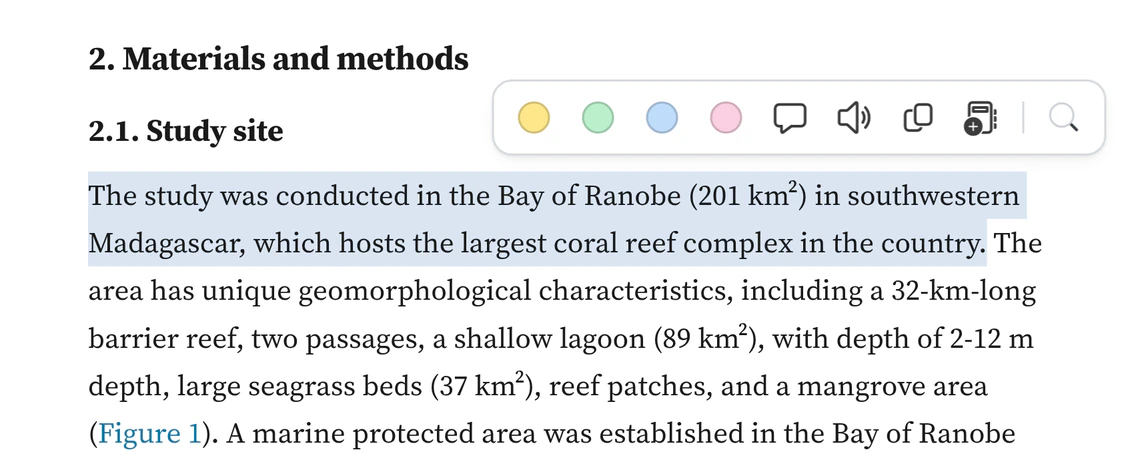
Select a sentence and a selection bar appears, with highlight colors, comment, copy and add to notes. Locate in the source scrolls the PDF to the same sentence.
What you get
The paper reads top to bottom in one column, with figures, references and equations shown where you are, and the original PDF alongside for checking.