scale(1.3637)'%3E%3Cg clip-path='url(%23cb)'%3E%3Crect x='0' y='0' width='1024' height='1024' fill='url(%23pg)'%3E%3C/rect%3E%3Cg clip-path='url(%23cf)'%3E%3Crect x='0' y='0' width='1024' height='1024' fill='url(%23fg)'%3E%3C/rect%3E%3C/g%3E%3C/g%3E%3C/g%3E%3C/svg%3E)
Batch processing for many papersBatch processing
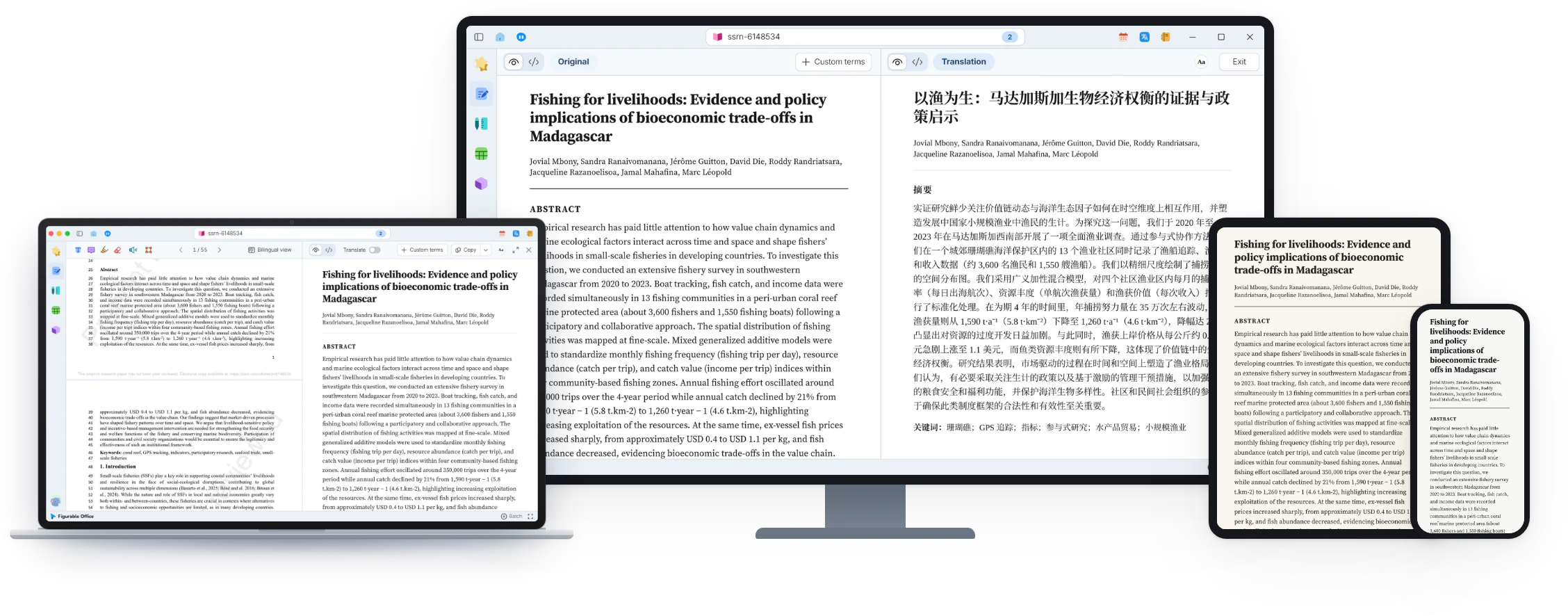
Several PDFs queued, reflowed and exported one by one, each with its own progress.Queued PDFs, reflowed and exported in turn.

The literature for one project is often a whole folder. Batch lets the files queue up to be reflowed and exported while you get on with something else.
When it helps
Before a proposal defense, an advisor sends a folder of thirty-odd papers. Opening each one, waiting for it to reflow and exporting it takes an afternoon, with nothing else getting done.
- A whole folder of PDFs to process at once
- No wish to watch each file finish
- A set of papers to export in one format
In this guide
Import and automatic processing
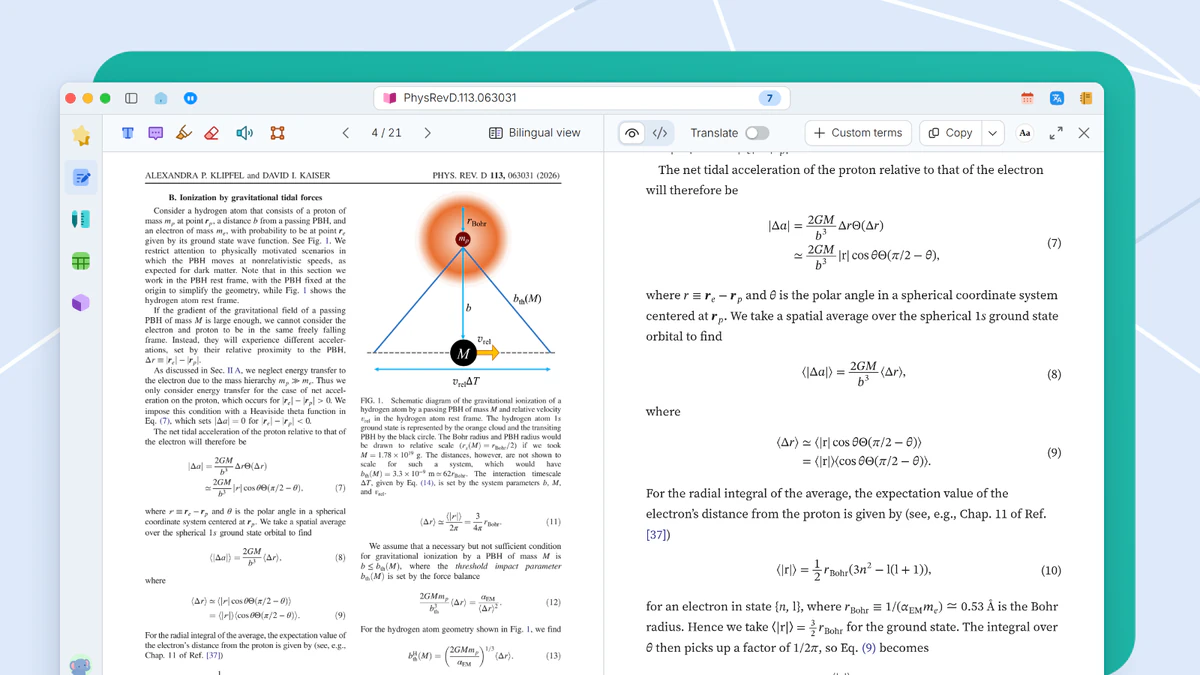
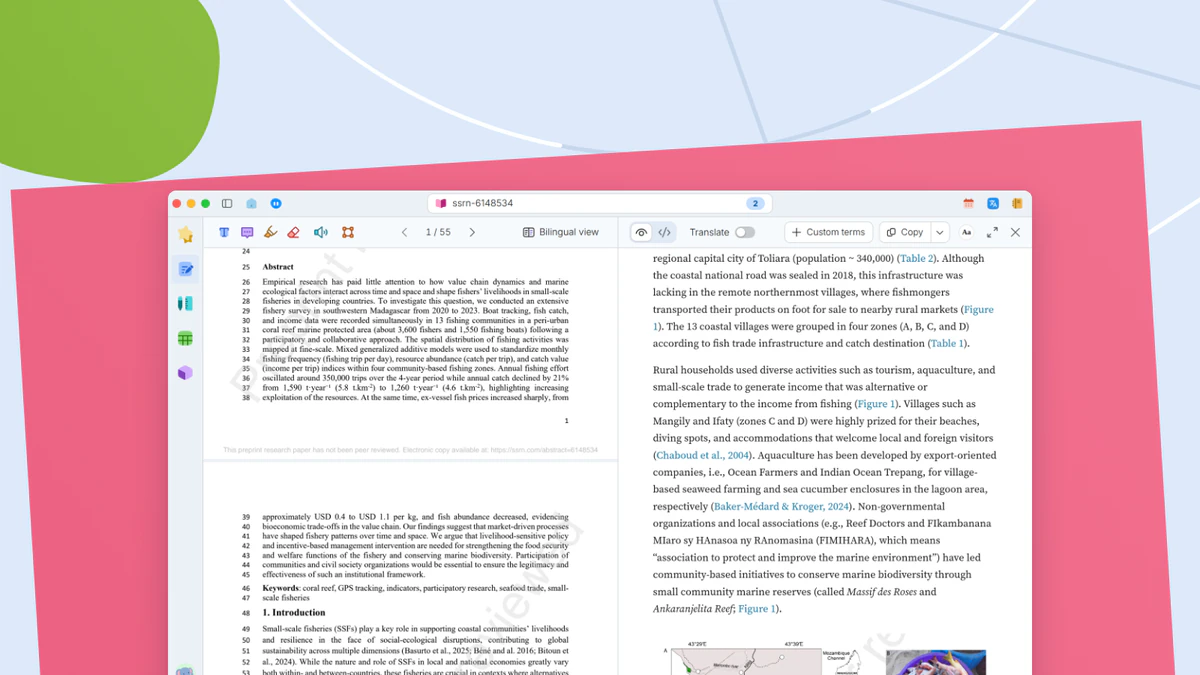
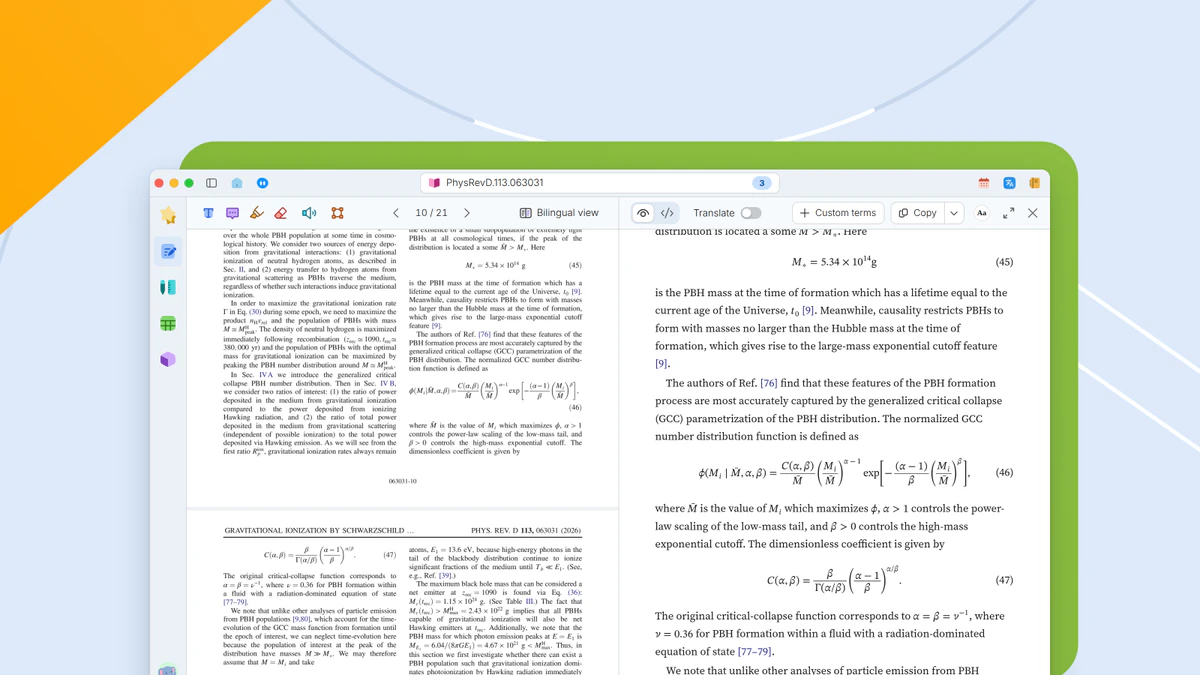
Open a PDF, then click Batch in the Convert group on the Home tab. The file list is on the left and a preview on the right. Click the plus button to choose PDFs, or drag files in. Processing starts on its own, one file at a time, in list order.
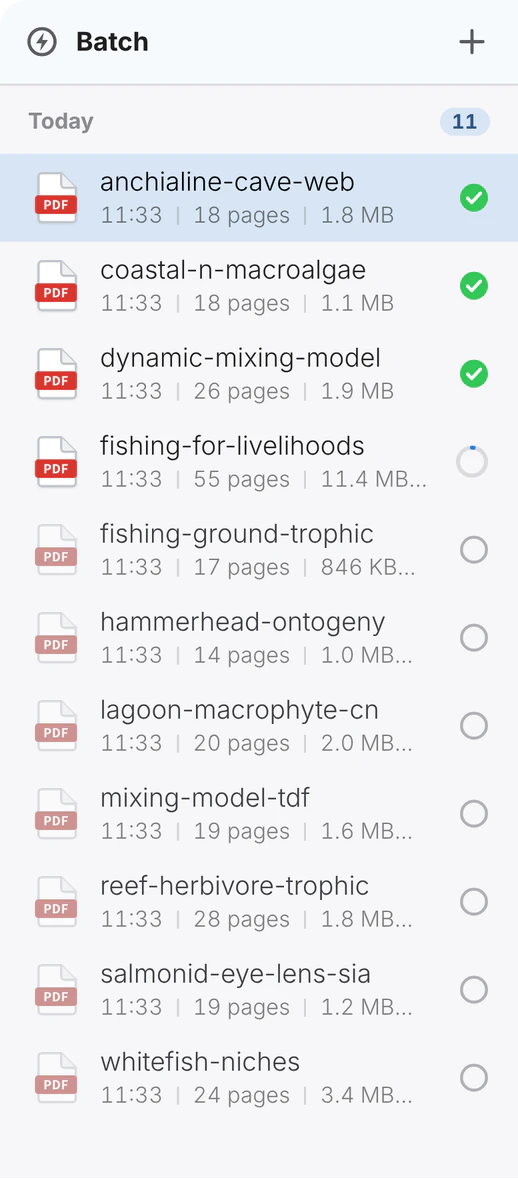
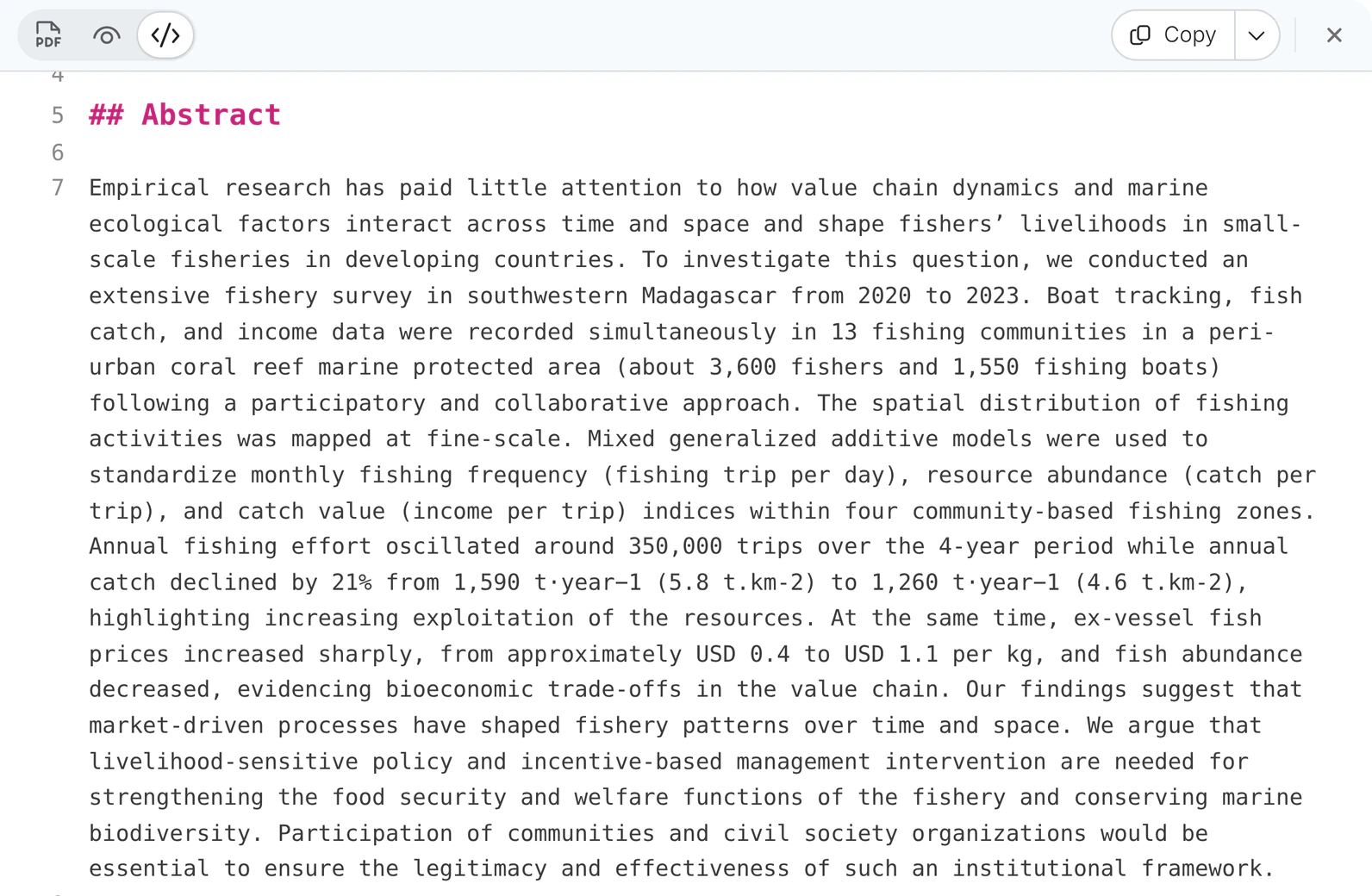
Three previews and file export
Three view buttons show the original PDF, the reading view and the source. Click another file in the list to preview it. Copy puts the current file on the clipboard as Markdown. The arrow next to it exports this file in any of the formats.
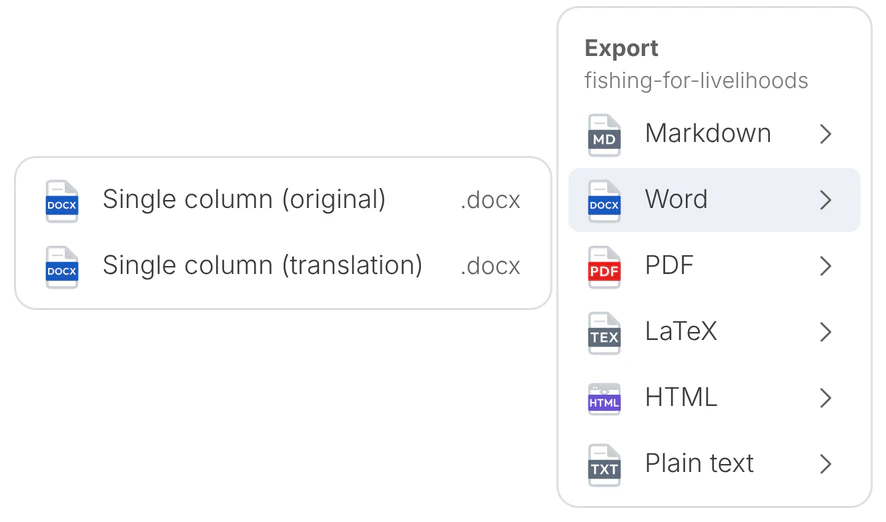
Export contents
Each format in the menu has an arrow. Point at it and the outputs for that format open beside it. Word has Single column (original) and Single column (translation). Click one to start the export.
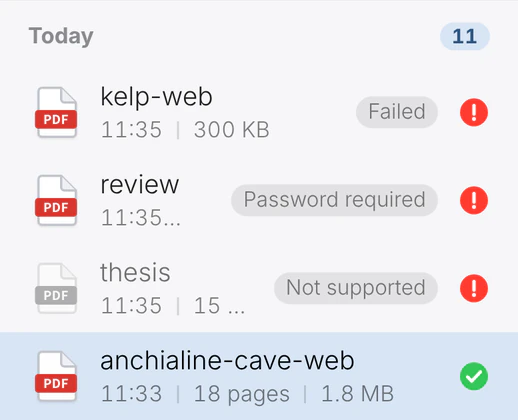
Unsupported and failed files
Chinese-text and scanned PDFs are marked Not supported, and encrypted PDFs are marked Password required. Right-click a failed file and choose Reprocess. The bottom bar counts the unsupported and failed files.
What you get
A batch of papers is processed in a queue while you keep reading and writing, and the results are reviewed and exported together.