scale(1.3637)'%3E%3Cg clip-path='url(%23cb)'%3E%3Crect x='0' y='0' width='1024' height='1024' fill='url(%23pg)'%3E%3C/rect%3E%3Cg clip-path='url(%23cf)'%3E%3Crect x='0' y='0' width='1024' height='1024' fill='url(%23fg)'%3E%3C/rect%3E%3C/g%3E%3C/g%3E%3C/g%3E%3C/svg%3E)
PDF annotations, written into the source
Highlights and comments from a PDF go into the Markdown source in place, with author and date.PDF highlights and comments in Markdown source.
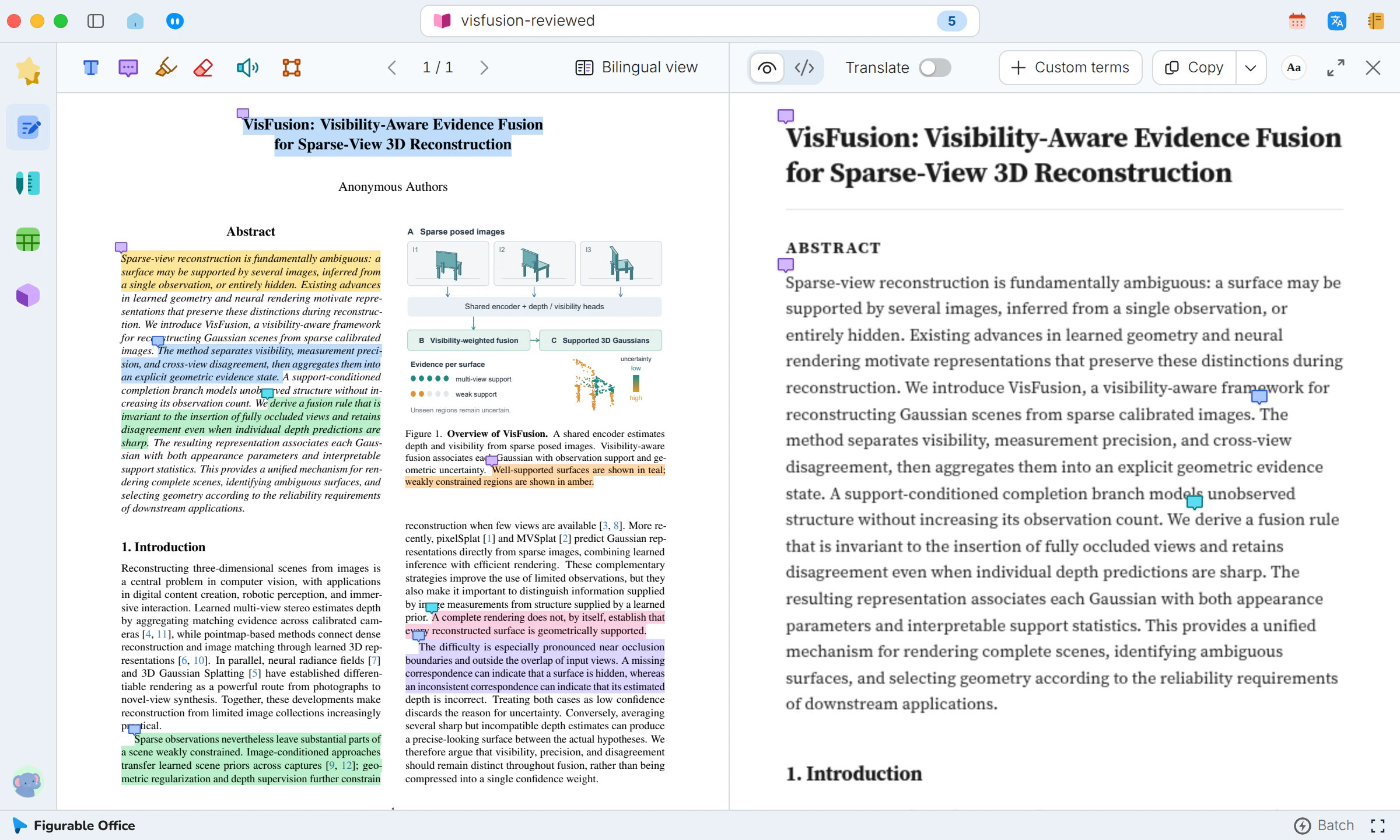
Highlights and comments in a PDF usually stay inside the reader. The source view writes them into Markdown in place, with author and date, ready to organize, search and hand to other tools.
When it helps
Review comments and your own notes live on the PDF, and a different reader shows only some of them. Turning them into a revision list means copying each one by hand, with nothing to tie it back to its place in the text.
- A PDF already full of highlights and comments
- Comments you want to turn into a revision list
- Annotations to hand to another tool along with the text
In this guide
An annotated PDF in the source
Open a PDF that carries highlights and comments. The page shows the highlights and the comment marks. Switch to the source view and turn on Annotations. Highlighted text is written as {==text==} with a footnote number, in the same place as the highlight in the reading view.
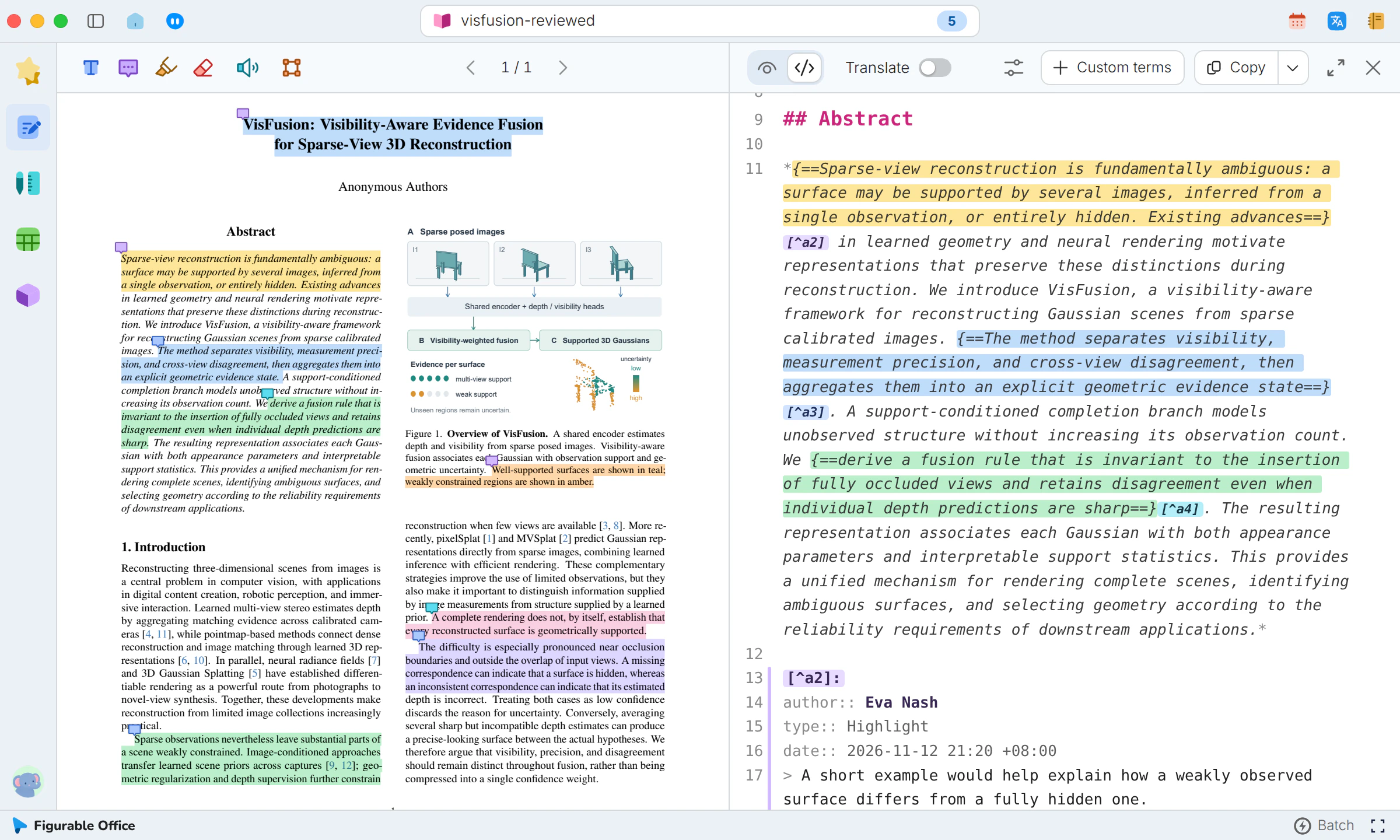
Author and date in footnotes
Each footnote records the annotator, type, date and comment, so review notes and discussion stay with the source.
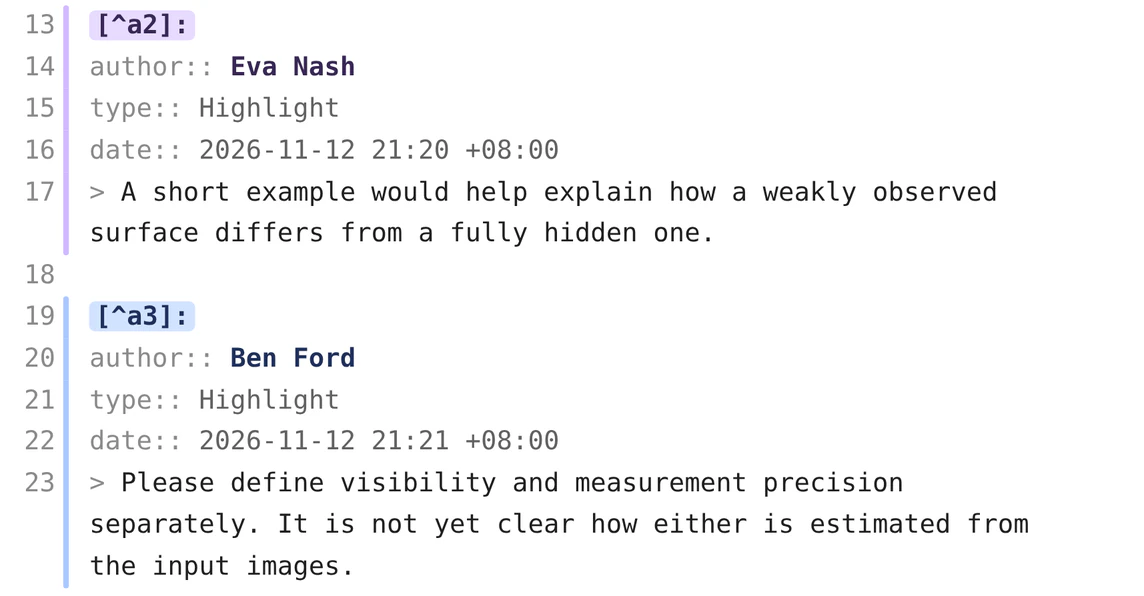
Highlights and comments from a selection
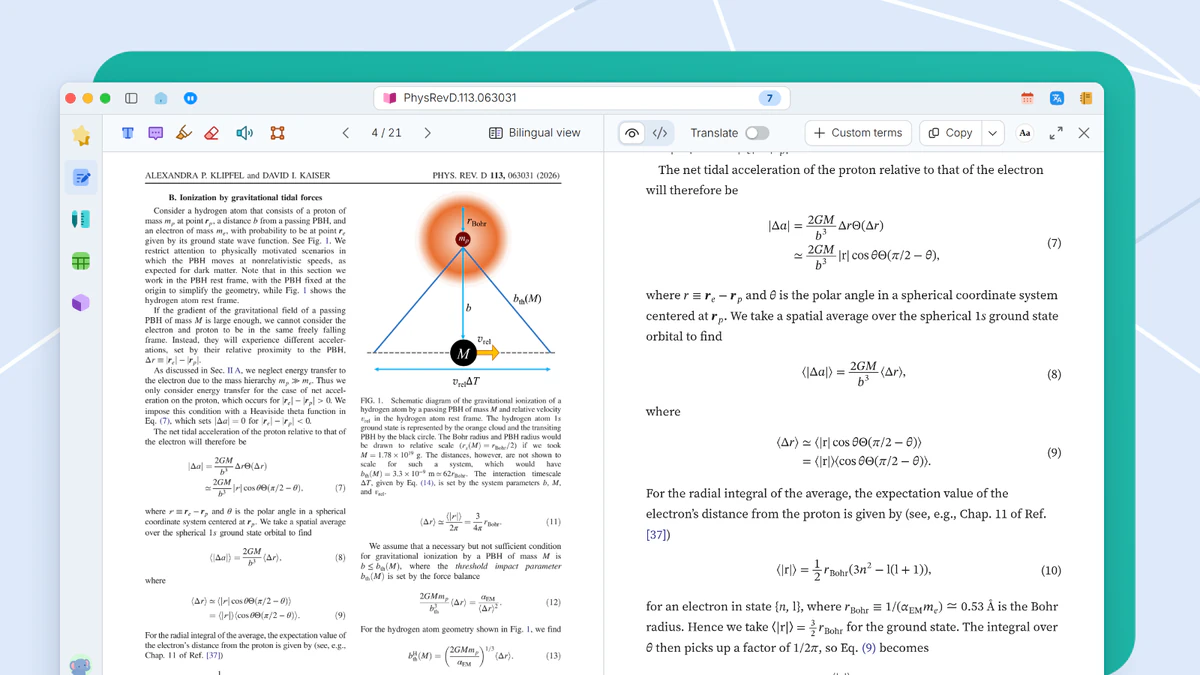
Select a sentence in the reading view. The selection bar offers highlight colors, comment, copy and add to notes.
What you get
Highlights and comments become searchable, portable text alongside the body, with the commenter and the time kept.